HHKB keyboards explained: the Happy Hacking layout, Topre switches and which model to choose
What makes the Happy Hacking Keyboard different, how Topre switches compare with mechanical ones, and what the HYBRID Type-S, HYBRID, Classic and Studio each offer.
HDBy Home & Lifestyle Desk, Home and lifestyle·Published October 5, 2026·11 min read
The Happy Hacking Keyboard, almost always shortened to HHKB, is one of the oldest continuously sold keyboard designs in computing. It is small, it has no arrow keys, it puts Control where most keyboards put Caps Lock, and in most versions it uses Topre switches rather than the mechanical switches that dominate the enthusiast market. Owners tend to be devoted to it; first-time buyers are often confused by it. This guide explains the idea behind the layout, how Topre switches differ from mechanical ones, what each current model offers according to the maker, PFU, and who the keyboard does and does not suit. NerdBible has not typed on these keyboards: everything below comes from PFU's own product pages, specification sheets and user's guides, from Topre's technical pages and from published independent reviews, all linked in the sources.
The quick answer
Want the full HHKB experience with wireless: the HHKB Professional HYBRID Type-S, PFU's flagship, with quieter Topre switches, USB-C and Bluetooth for up to four devices.
Want the classic Topre sound and wireless: the HHKB Professional HYBRID, the same board with standard (non-silenced) Topre switches.
Want wired only, no batteries: the Classic Type-S (silenced switches, keymap tool support) or the Classic (standard switches, DIP switches only).
Want a mouse built into the keyboard: the HHKB Studio, with a pointing stick, mouse buttons and gesture pads, but mechanical rather than Topre switches.
Want arrow keys, a function row or a number pad: look at a different keyboard. None of the HHKB models has them.
Where the Happy Hacking Keyboard came from
The HHKB was designed by Eiiti Wada, now Professor Emeritus at the University of Tokyo, together with the Japanese company PFU, which still makes it and is today part of the Ricoh Group. PFU's history page says Professor Wada first argued for better keyboard layouts in a paper published in the PFU Technical Review, built a cardboard model he called the "Aleph Keyboard", and that the first HHKB followed. PFU dates that first model to December, and marked the keyboard's 30th anniversary with a dedicated anniversary page carrying a message from Professor Wada, in which he describes the original goal simply: a keyboard he personally liked and that suited writing programs. In a recent press release PFU put cumulative worldwide sales at 770,000 units.
The philosophy is best known through a quote PFU reproduces on its history page: cowboys abandon a horse that dies but never their saddle, because the saddle is the interface adapted to their body. Computers, in Professor Wada's argument, are consumables; the keyboard is the interface you keep for life. That is why the HHKB has changed so little in shape and layout while its connectivity and switches have been updated around it.
According to the Wikipedia history of the line, the first HHKB used membrane switches, and Topre capacitive switches arrived with the first HHKB Professional. Later generations added a silenced Type-S variant, a Bluetooth model and, in the current generation, USB-C, PBT keycaps throughout and a keymap tool.
The layout: what is different and why
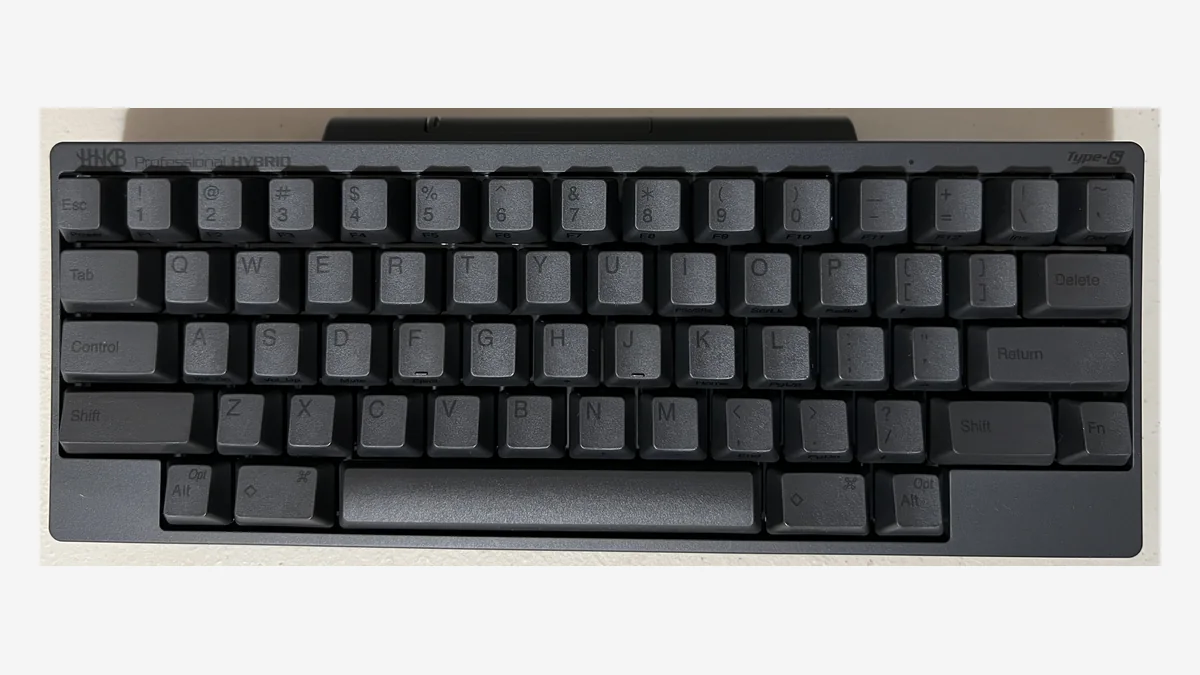
Every HHKB uses what PFU calls a "near-symmetrical 60-key modified US ANSI layout", with a standard 19.05 mm key pitch, per the HYBRID Type-S specification sheet. PFU says the arrangement follows the Sun Type 3 keyboard, a Unix workstation keyboard. In practice the differences from a typical laptop or desktop layout are these:
Control where Caps Lock usually is. PFU places Control directly to the left of A. It is the only Control key. Caps Lock still exists, but on the Fn layer.
Escape next to 1. The key normally found there moves to the right end of the number row.
A split top-right corner. Where most keyboards have a wide Backspace, the HHKB has two small keys (backslash and backtick), and the key directly above Return is labelled Delete. A DIP switch makes that key send Backspace instead, as the HYBRID user’s guide describes.
No arrow cluster, function row or number pad. Arrows, F1 to F12, Home, End, Page Up and Page Down sit on the Fn layer. The Classic user’s guide lists Fn with [, ;, / and the quote key for the four arrows, and Fn with the number row for F1 to F12. Those secondary functions are printed on the front face of the keycaps.
Modifier keys flanking the space bar. Meta keys (Windows or Command, depending on the mode) sit between the space bar and Alt, and the bottom corners are left empty, which gives the HHKB its notched outline.
The point, as PFU puts it, is that your fingers never need to leave the home row. Whether that is a gain or a cost depends on how you work, which is covered below.
Topre switches versus mechanical switches
All current HHKB Professional models use Topre electrostatic capacitive switches. Topre, which makes them, explains on its Realforce features page that the switch has no physical contact: when two electrodes come close together, a sensor registers the press. Because there is no metal contact to bounce, Topre says the design is free of "chattering" (accidental double inputs). Inside each key, according to PFU, is a rubber dome with a conical spring beneath it.
A mechanical switch, by contrast, closes a metal contact inside a self-contained switch housing, usually with a coil spring around the stem. Mechanical switches come in a huge range of feels and are standardised enough that many keyboards let you pull them out and swap them.
How Topre feels is a matter of description, not measurement. Tom’s Hardware called the switches on the HYBRID Type-S tactile and soft, with a small bump near the top of the press and a light, slightly mushy bottom out, and said they are "not technically mechanical" but more refined than a typical membrane keyboard. The same review noted that they are not "snappy" like mechanical switches.
The specification figures PFU publishes for the Professional models:
Key weight: 45 g on every current model. A limited 30th anniversary edition of the HYBRID Type-S uses 30 g switches, which PFU describes as the lightest in HHKB history.
Key travel: 4.0 mm on the standard switches, 3.8 mm on Type-S.
Type-S: adds a silencing membrane to the rubber dome and spring. PFU's Japanese line-up page says the Type-S structure is designed for speed and quietness.
Rated life: 50 million keystrokes on the HYBRID, HYBRID Type-S and Classic sheets; 30 million on the Classic Type-S and the Snow HYBRID Type-S sheets.
Topre switches are soldered in and cannot be hot-swapped, a limitation PCWorld points out. The exception in the line-up is the HHKB Studio, which uses PFU's own 45 g linear mechanical switches in hot-swap sockets.
The current models
HHKB Professional HYBRID Type-S
The HHKB Professional HYBRID Type-S in charcoal. The standard HYBRID has the same case and layout. Photo: WikiLinuz / Wikimedia Commons, CC0
The flagship. Silenced Topre switches, USB-C, and Bluetooth 4.2 LE multi-pairing with up to four devices, switched with a key shortcut. It runs on two AA batteries, which PFU rates at approximately three months with alkaline cells, or from USB power. It weighs 540 g without batteries (550 g in the Japanese layout) and measures 294 x 120 x 40 mm. It comes in charcoal and white with printed or blank keycaps, and in a pure white Snow version with centre-printed legends in a light Helvetica-style typeface or blank keys (Snow page). PFU's Japanese line-up page also lists a Japanese (JIS) layout, printed and blank.
HHKB Professional HYBRID
Identical in connectivity, size and weight to the Type-S, but with standard Topre switches (4 mm travel) that PFU associates with the classic Topre "thock" sound. Charcoal or white, printed or blank keycaps, and a Japanese layout in Japan.
HHKB Professional Classic Type-S
A wired-only USB-C model with the silenced Type-S switches, no batteries and centre-printed keycaps. PFU says the shape pays homage to the original model and that it supports the keymap tool. It weighs 530 g, measures 294 x 110 x 40 mm and comes in white, charcoal and Snow, in US and Japanese layouts.
HHKB Professional Classic
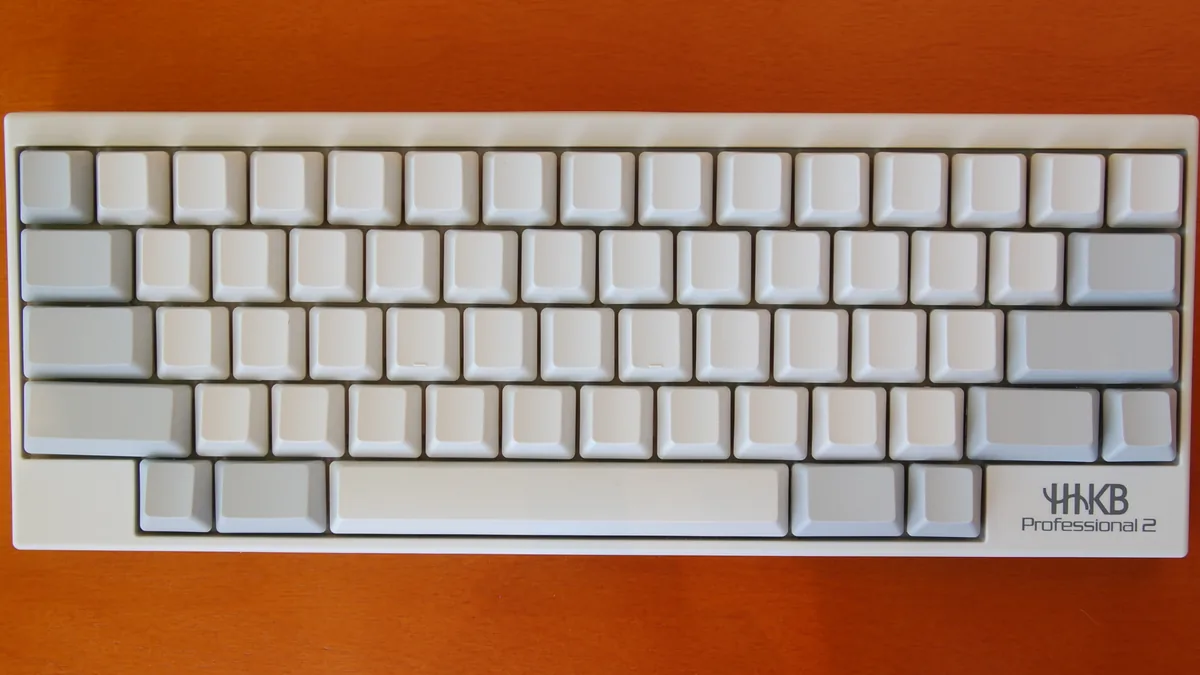
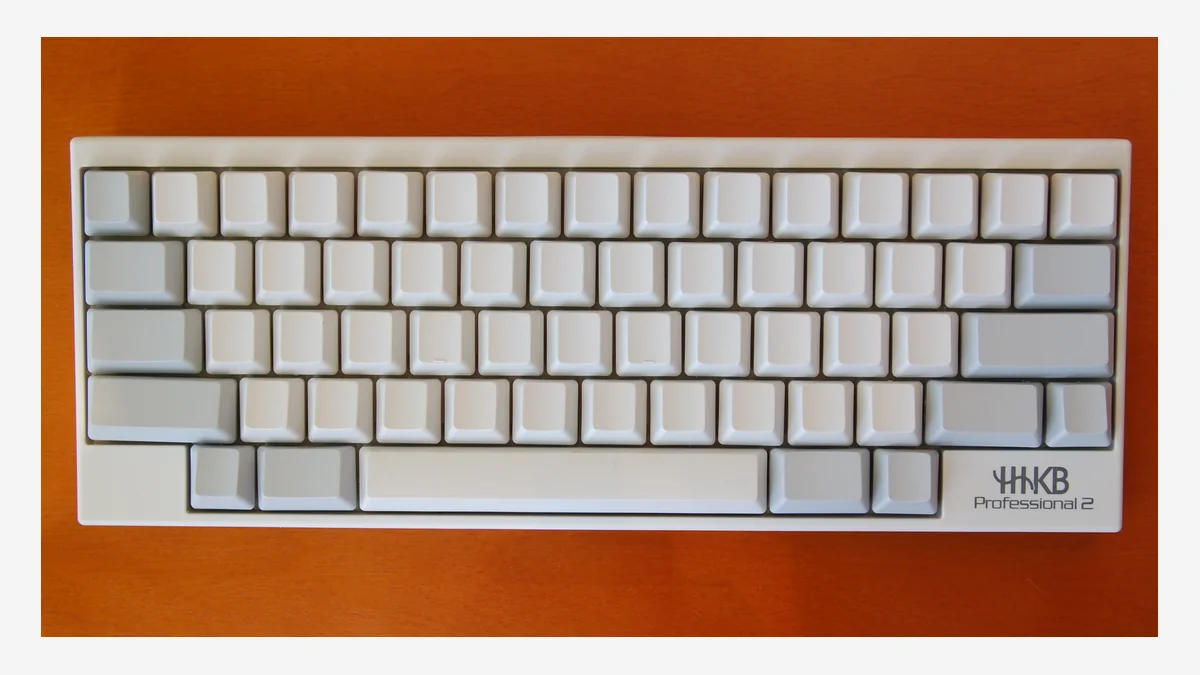
The earlier HHKB Professional 2 in white. The Professional Classic that replaced it keeps the same shape and layout. Photo: Aon fi / Wikimedia Commons, CC BY 3.0
The simplest model: wired USB-C, standard Topre switches, 530 g. PFU's download page states that the keymap customisation function is not available for Classic models, so changes are limited to the DIP switches. It comes in white or charcoal with printed or blank keycaps. Availability varies by region: PFU's EMEA site lists it, while its Japanese line-up page lists it among previously announced products.
HHKB Studio
The Studio is a departure. It keeps the HHKB layout but adds a pointing stick between G, H and B, three mouse buttons below the space bar and four touch-sensitive gesture pads on the front and sides, which by default handle tasks such as cursor movement, window switching and scrolling, according to PFU's launch announcement. It is PFU's first hot-swappable HHKB, compatible with standard-profile MX-style 3-pin and 5-pin switches from Cherry, Gateron and Kailh. It connects by USB-C or Bluetooth to up to four devices, runs on four AA batteries (approximately three months with alkaline cells, by PFU's estimate) or USB power, weighs 840 g without batteries and measures 308 x 132 x 41 mm. The keymap tool for the Studio stores up to four profiles on the keyboard. PFU says the concept came from PFU America and the design from the agency HUGE. It comes in charcoal and Snow.
Comparison table
Model
Layout
Switches
Connectivity
Pointing device
Weight
Power
Professional HYBRID Type-S
60-key US, US blank, Japanese, Japanese blank
Topre silenced, 45 g, 3.8 mm
USB-C, Bluetooth up to 4 devices
None
540 g (US), 550 g (JIS), without batteries
2 x AA (approx. 3 months) or USB
Professional HYBRID
60-key US, US blank, Japanese
Topre standard, 45 g, 4.0 mm
USB-C, Bluetooth up to 4 devices
None
540 g (US), 550 g (JIS), without batteries
2 x AA (approx. 3 months) or USB
Professional Classic Type-S
60-key US, Japanese
Topre silenced, 45 g, 3.8 mm
USB-C only
None
530 g (US), 540 g (JIS)
USB
Professional Classic
60-key US, US blank
Topre standard, 45 g, 4.0 mm
USB-C only
None
530 g
USB
Studio
60-key HHKB layout
PFU linear mechanical, 45 g, 3.6 mm, hot-swap
USB-C, Bluetooth up to 4 devices
Pointing stick, 3 mouse buttons, 4 gesture pads
840 g without batteries
4 x AA (approx. 3 months) or USB
Prices are not listed here. PFU sells through regional stores and retailers, prices differ by country and currency and change with promotions, and several reviewers named price as the main drawback. Check PFU's site for your region before buying.
DIP switches, Mac and Windows modes, and key mapping
Under a cover on the bottom of the Professional models are six DIP switches. The HYBRID user’s guide sets out what they do: switches 1 and 2 choose HHK mode (the factory default), Win mode or Mac mode; switch 3 turns the Delete key into Backspace; switch 4 turns the left Meta key into a second Fn; switch 5 swaps Alt and Meta; and switch 6 on the HYBRID models enables or disables power saving, which turns the keyboard off after 30 minutes unused unless it is on a USB cable. On the Classic, Fn with Control and W or M switches between Win and Mac modes.
The HYBRID, HYBRID Type-S and Classic Type-S also work with PFU's free HHKB Keymap Tool for Windows and macOS, which remaps most keys and writes the result to the keyboard itself, so the layout follows it to any device. The tool only works over a USB connection, not Bluetooth, and the same download page carries firmware updates. Tom's Hardware noted that the original Fn key cannot be remapped and, in its review unit, that the box contained batteries but no USB-C cable.
Bluetooth pairing works through Fn and Control with a number key from 1 to 4 to choose a pairing slot, per the user's guide. PFU lists support for Windows, macOS, iOS, iPadOS and Android, and says the keyboards may work with Linux without guaranteeing it.
Who the HHKB suits
Programmers and system administrators, the audience it was designed for. Control on the home row makes Control-heavy shortcuts reachable without stretching.
Emacs users, whose editor leans heavily on Control combinations, and Vim users, who reach for Escape constantly and find it beside the 1 key.
Writers who touch-type and want a quiet, compact board; the Type-S models are aimed at quiet offices.
People who travel or have little desk space. At 294 mm wide the Professional models are, in PFU's words, light and compact enough to take with you.
People who switch between several devices, thanks to four Bluetooth slots and a keymap stored on the keyboard.
Who should look elsewhere
Gamers who rely on arrow keys, a function row or quick access to many keys at once. Every arrow is a two-key combination.
Anyone who wants to swap switches or experiment with switch types. Topre switches cannot be hot-swapped; only the Studio supports that, and it gives up Topre to do so.
Spreadsheet and accounting work where a number pad matters.
People who want backlighting. None of the models has it, and TechRadar and InfoWorld both found the Studio's dark legends hard to read in low light.
Buyers on a budget. Tom's Hardware called the HYBRID Type-S "pricey for such a niche product", and PCWorld and TechRadar made similar points about the Studio.
The learning curve
Reviewers agree it takes time. Tom’s Hardware said it took time to get used to the layout but did not count that against the keyboard, pointing to the DIP switches and keymap tool as ways to ease the transition. TechRadar described a steep learning curve on the Studio, and noted that by default the key in the Backspace position deletes forwards, which works against muscle memory until the DIP switch is flipped. PCWorld pointed out that the box includes no tips on adjusting to the layout. InfoWorld found the Studio's gesture pads useful enough that it rarely used the Fn arrow keys, but also triggered them by accident when moving the keyboard.
A practical approach drawn from those reviews: start in the mode that matches your computer, set DIP switch 3 if you want a conventional Backspace, learn the four Fn arrow keys first, and use the keymap tool only once you know which defaults actually bother you.
Alternatives in plain terms
Other Topre keyboards. Topre's own Realforce range uses the same family of capacitive switches in full-size, tenkeyless and compact formats, and some models let you adjust the actuation point, according to Topre's features page.
HHKB-layout mechanical keyboards. Tom's Hardware pointed to keyboards that copy the HHKB layout on a hot-swap circuit board, such as the Drop Tokyo60 kit, for people who like the layout but want mechanical switches.
Conventional 60 and 65 percent mechanical keyboards. These keep a familiar Caps Lock, Control and Backspace, and 65 percent boards add a small arrow cluster. Tom's Hardware named the SteelSeries Apex Pro Mini as a compact board with a normal layout.
A laptop-style keyboard with a pointing stick. If the Studio's main appeal is mousing from the home row, PCWorld compared its pointing stick to the best ThinkPad implementations, which suggests a ThinkPad-style keyboard as a cheaper route to the same habit.
The bottom line
The HHKB is a deliberately opinionated keyboard. If you type more than you navigate, live in a terminal or a text editor, and like the idea of a keyboard you keep for decades, PFU's documentation and independent reviews describe a well-built, compact board with a distinctive Topre feel and flexible remapping. If you need arrows, function keys, a number pad or the freedom to change switches, the same reviews suggest you will be fighting the design rather than enjoying it.