
This Google Drive review explains why the service tops our cloud storage ranking for collaboration, and where it falls short. Drive is built into every Google Account, which means hundreds of millions of people already have it, often without having chosen it. The real question is not whether Drive works (it clearly does) but whether it is the right home for your files, given how tightly it ties you to Google's ecosystem and how it handles privacy compared with encrypted alternatives.
Google Drive review verdict: is it worth it?
For anyone who writes, edits or shares documents with other people, Google Drive is the most capable cloud storage service we have assessed. Real-time co-editing in Docs, Sheets and Slides, flexible sharing controls, generous file-size limits and solid apps on every major platform make it the easiest way to work on files together. Independent reviewers rate it highly for the same reasons.
Its weaknesses are just as clear. Files are encrypted in transit and at rest, but Google holds the keys for personal accounts, so it is not a zero-knowledge service. The free allowance is shared with Gmail and Google Photos, so it fills faster than the headline suggests. And Drive is a sync and sharing tool, not a full computer backup. If privacy is your first priority, or you need image-level backups, look elsewhere.
What Google Drive is and who it is for
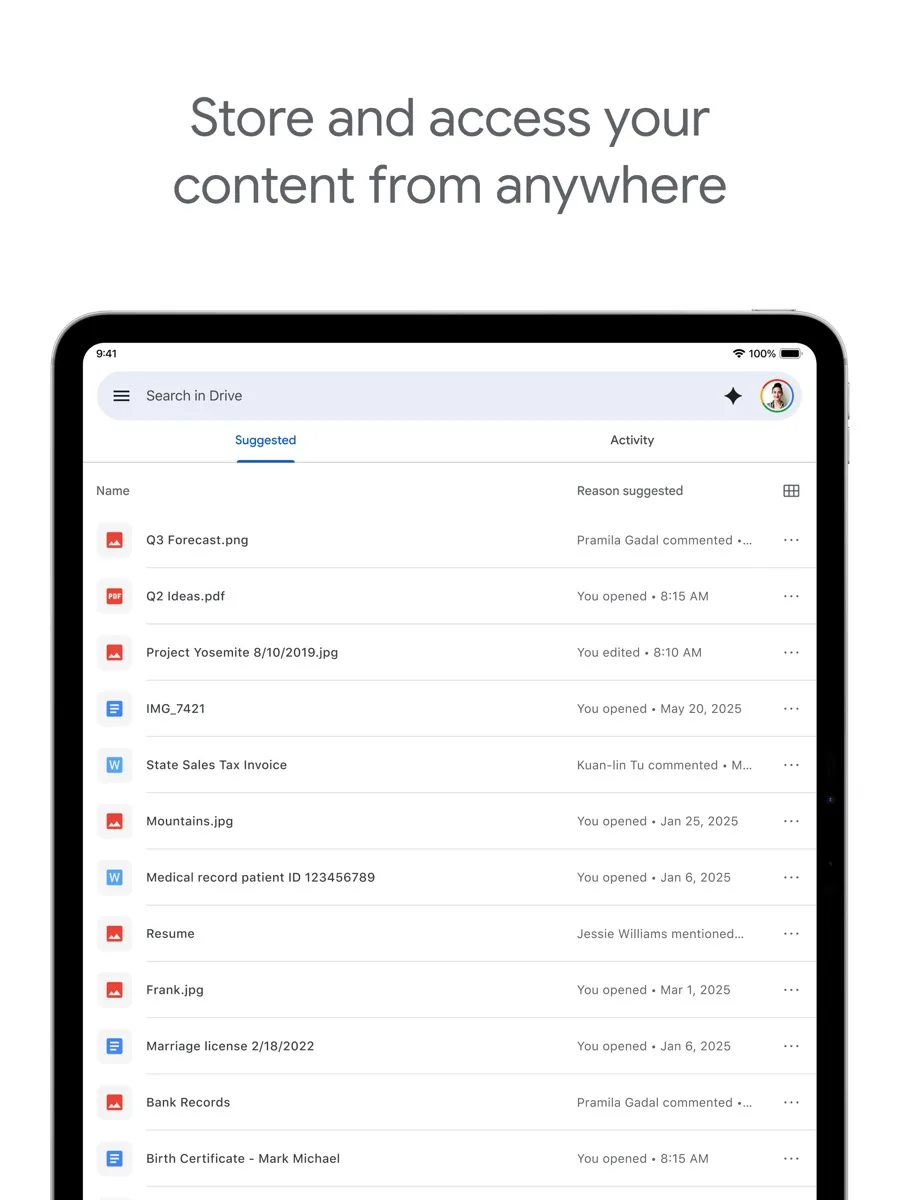
Google Drive is Google's file storage and sharing service. It stores any file type, syncs folders to your computer through Drive for desktop on Windows and macOS, and has mobile apps for Android and iOS. Its defining feature is integration with Google Docs, Sheets and Slides, the browser-based office apps that let several people edit the same file at once.
Drive comes in two main forms. Personal Google Accounts get Drive with storage that can be expanded through a Google One membership. Businesses and organisations get Drive as part of Google Workspace, which adds pooled storage, admin controls and security features. Drive suits:
- students, freelancers and teams who collaborate on documents daily
- households already using Gmail, Android phones or Google Photos
- small businesses that want email, calendars and file sharing from one vendor
- anyone who needs to share large files with people who may not have an account
Key features
Collaboration
Collaboration is where Drive leads. Several people can edit a Doc, Sheet or Slides file at the same moment, leave comments, suggest edits and assign tasks. Sharing is granular: you can share with named people as viewer, commenter or editor, or create a link that anyone with the address can open. Shared drives in Workspace let a team own files collectively, so documents do not disappear when someone leaves.
Sync and file limits
Drive for desktop keeps files in sync between your computer and the cloud, with the option to keep files online and download them on demand, or mirror them locally. Google's help centre lists a maximum of 5 TB for most individual files, which is far beyond what most people will ever upload. Any file type can be stored, and common formats including PDFs, Office documents, images, audio and video can be previewed in the browser.
Version history and recovery
Drive keeps earlier versions of files. For files such as PDFs and images, Google says an older version may be permanently deleted after 30 days or once there are 100 newer versions, unless you mark it to keep forever. Docs, Sheets and Slides keep their own detailed revision history. This is useful protection against accidental edits but is not the same as a dedicated backup with long retention.
Search and AI features
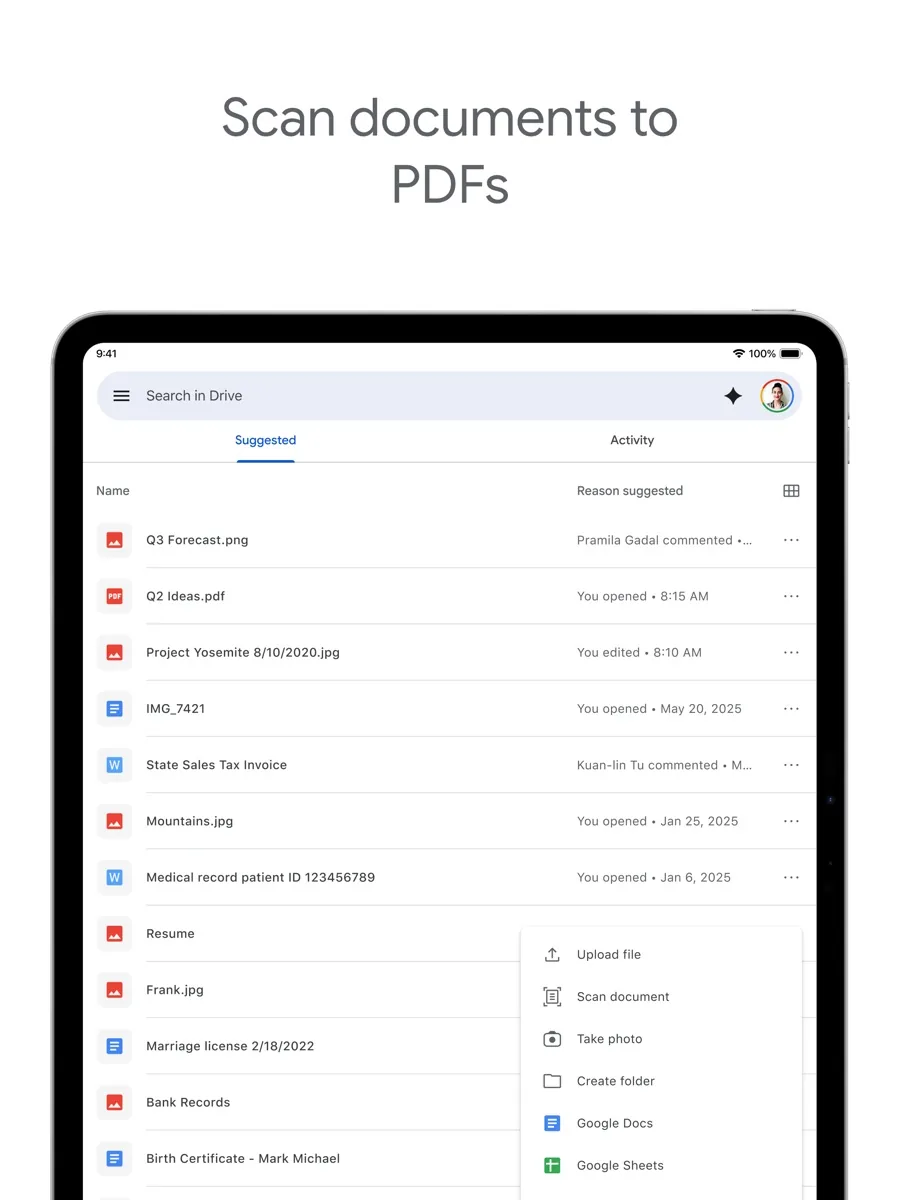
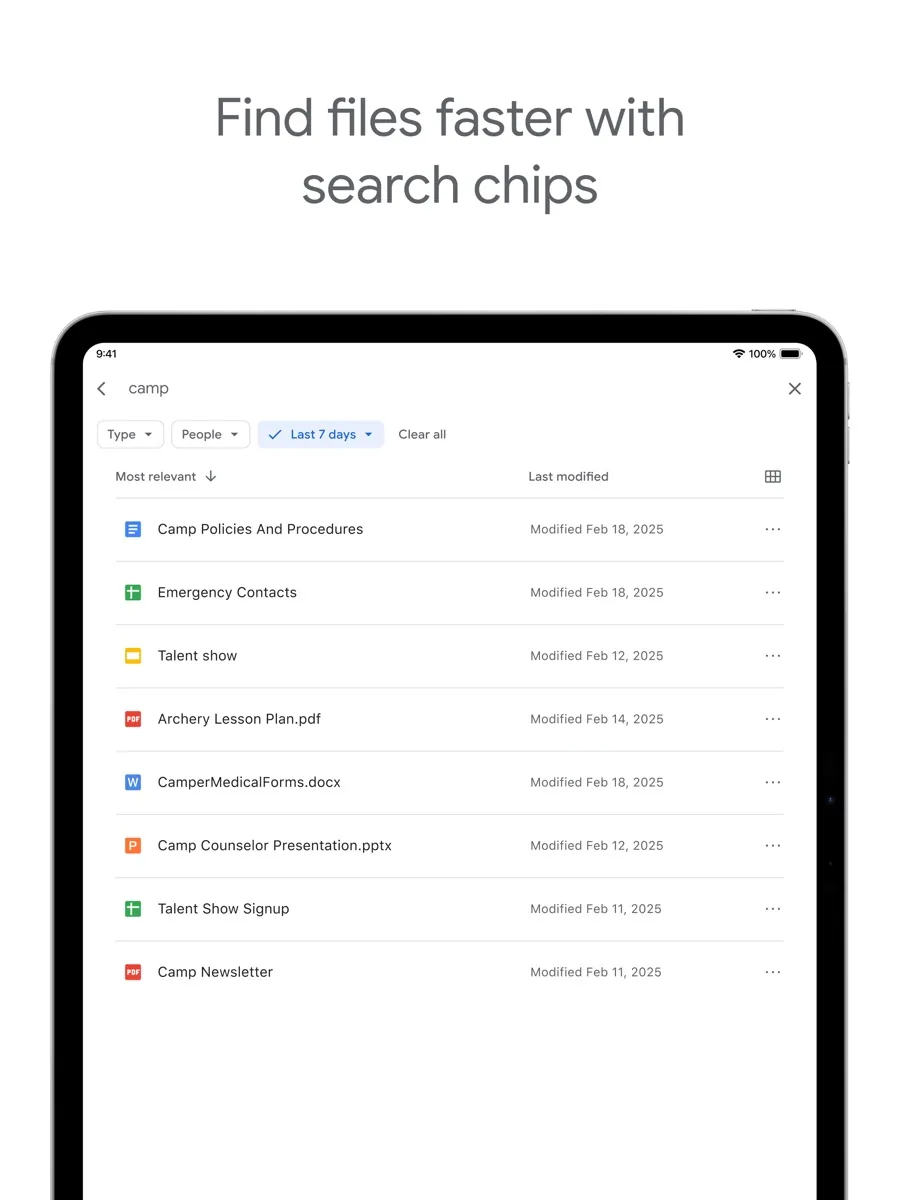
Search is one of Drive's strengths, which is no surprise given the company behind it. Drive can search inside documents and, on mobile, recognise text in scanned images. Google's Workspace pages also describe Gemini features across Drive and the office apps, and AI-assisted classification and data loss prevention for organisations on certain plans.
How much does Google Drive cost? Plans and pricing structure
Our product card shows current prices; here is how the plans are organised.
- Free: Google says each Google Account includes up to 15 GB of storage, shared across Gmail, Google Drive and Google Photos.
- Google One: paid memberships add storage in tiers, can be billed monthly or annually, and can be shared with up to five other people in a family group. Google says you can cancel at any time. Higher tiers bundle extra features, including Google's AI plans.
- Google Workspace: business plans priced per user, with pooled storage shared across the organisation. Google's pricing page lists Business Starter, Business Standard and Business Plus for up to 300 users, plus Enterprise plans without a user cap.
One policy matters more than the price list. Google says that if your account stays over its storage quota for two years or longer, your content in Gmail, Photos and Drive may be deleted, after at least three months' notice. Keep an eye on your usage if you rely on the free tier.
Is Google Drive safe? Privacy and security
Google's Drive help centre says all files uploaded to Drive or created in Docs, Sheets and Slides are encrypted in transit and at rest using 256-bit AES encryption. That protects data against interception and against someone stealing physical disks. It does not stop Google itself from accessing files, because Google manages the encryption keys for standard accounts.
For organisations, Google offers Workspace client-side encryption, where the organisation controls the keys, on some Business and Enterprise plans. Google's Drive product page also lists ransomware detection, data loss prevention policies and Vault for retention on certain plans. For a personal account, the practical security steps are the account-level ones: a strong password or passkey, 2-Step Verification, and regular checks of who you have shared files with.
Sharing settings deserve attention. A link that anyone with the address can open may be forwarded beyond the people you intended, and Drive does not offer password-protected share links. Review sharing on sensitive folders periodically.
What other reviewers found
- PCMag praises Drive's free storage, collaboration in the productivity suite, flexible sync options and useful mobile apps with text recognition, but criticises the lack of password protection for shared files and the fact that anyone with your email address can place items in your account.
- TechRadar calls Drive powerful and robust for consumers and businesses alike, and values the free web office suite, but points out it is not a full backup solution, lacks end-to-end encryption and binds you closely to Google's ecosystem.
- Tom's Guide gives Drive an Editor's Choice badge for ease of use and its integrated office apps, while saying security could be tighter and that it would like to see full end-to-end encryption.
- Cloudwards recommends Drive for people who want simple storage that connects to many productivity apps and highlights its real-time collaboration, but scores it low on privacy because Google scans uploads and offers no zero-knowledge encryption.
Where they agree: all four outlets put collaboration and ease of use at the top of Drive's strengths, and all four raise encryption or privacy as the main limitation. None of them treats Drive as a backup product.
Where they disagree: the outlets differ on how much the missing end-to-end encryption matters. Tom's Guide suggests it will not be a major problem for most users, while TechRadar treats it as a reason security-minded buyers should look elsewhere. PCMag focuses on smaller practical issues such as share-link protection. For a buyer, the conclusion is straightforward: if you are storing everyday documents and photos, Drive's model is fine; if you hold files where provider access would be unacceptable, choose a zero-knowledge service or add client-side encryption.
What could be better
- No zero-knowledge option for personal accounts. Client-side encryption exists, but only for some Workspace plans.
- Shared free quota. The free allowance covers Gmail and Photos too, so a busy inbox or photo library eats into Drive space.
- Not a backup. Sync mirrors deletions and changes. Version history helps but has limits for non-Google file types.
- Ecosystem pull. Drive is at its best with Google's own apps. Teams standardised on desktop Microsoft Office may find Microsoft's storage more natural.
- Share-link controls. There is no password protection on shared links, a point PCMag raises.
Who should choose something else
Choose a zero-knowledge provider if you store sensitive legal, medical or financial documents and do not want any provider able to read them. Choose a dedicated backup service if you need to restore an entire computer after a failure. Apple-centric households may find iCloud Drive more seamless, and Microsoft 365 subscribers already get OneDrive storage with their Office licence, which may make a separate Drive upgrade unnecessary. And if you only need occasional storage, the free allowance may be enough on its own.
Bottom line
Google Drive earns its place as our pick for collaboration: it is easy to use, works on every platform, and makes working on files with other people simpler than any rival. Accept it for what it is, a convenient, well-secured but not private-by-design storage and sharing service, and it is excellent. Pair it with a separate backup for anything irreplaceable, and with an encrypted service for anything truly confidential.
Frequently asked questions
How much free storage does Google Drive give you?
Google says each Google Account includes up to 15 GB of free storage. That space is shared across Gmail, Google Drive and Google Photos, so large email attachments and photo backups count against the same total. If you need more, a Google One membership adds storage, and Google Workspace business plans include pooled storage per user across the organisation.
Is Google Drive end-to-end encrypted?
Not for standard personal accounts. Google encrypts files in transit and at rest with 256-bit AES, but it manages the keys, so it is not a zero-knowledge service. Organisations on some Google Workspace Business and Enterprise plans can turn on client-side encryption, which lets the organisation control the keys and prevents Google from reading those files.
What happens if I go over my Google storage limit?
Google's help centre lists the services that stop saving new content while you are over quota, and confirms you can still sign in and open your account. If you stay over your quota for two years or longer, all of your content in Gmail, Photos and Drive may be removed. Google says it gives at least three months' notice before deletion.
Can I use Google Drive as a backup?
Drive can hold copies of important files, but reviewers including TechRadar point out it is not a full backup solution. Sync mirrors deletions and edits across devices, and version history for non-Google files has limits. For protection against hardware failure or ransomware, keep a separate backup alongside Drive rather than relying on sync alone.
Is Google Drive good for teams?
Yes, collaboration is its strongest area. Several people can edit Docs, Sheets and Slides at once, with comments, suggestions and granular sharing permissions. Businesses usually choose Google Workspace, which adds shared drives that the team owns collectively, admin controls, pooled storage and, on higher plans, security tools such as data loss prevention and Vault.
Sources
- How your Google storage works, Google One Help
- Google One plans, Google
- Files you can store in Google Drive, Google Drive Help
- Check activity and file versions, Google Drive Help
- Get started with encrypted files in Drive, Google Drive Help
- Google Drive, Google Workspace
- Compare Google Workspace plans, Google Workspace
- Google Drive Review, PCMag
- Google Drive cloud storage review, TechRadar
- Google Drive cloud storage review, Tom's Guide
- Google Drive Review, Cloudwards